Lovable Payments Not Working in Production: Causes and Fixes
On this page
Checkout works in the Lovable preview but fails live? Find which payment setup your app runs, then fix go-live, test keys, webhooks and portal errors.
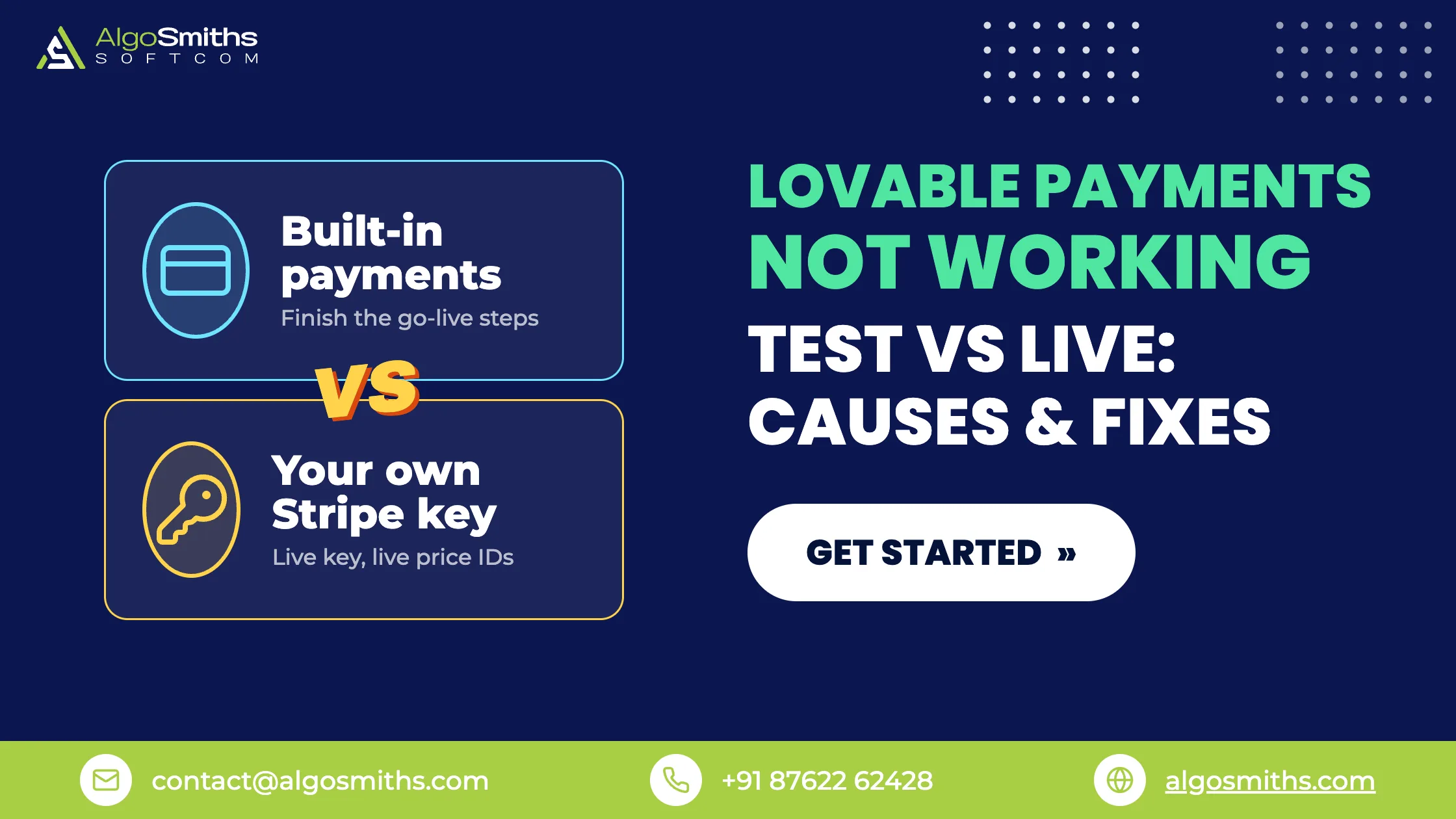
When Lovable payments are not working on your published site, the fix depends on which of two setups your app uses. Built-in payments stay off in production until you finish the provider's go-live steps. Payments through your own Stripe key fail when the app still holds a test key or test price IDs. This guide is for founders whose checkout works in the preview and breaks on the live domain. It follows Lovable's built-in payments and Stripe integration documentation, read on 18 November 2026.
Key takeaways
- Lovable offers built-in payments, where Lovable creates and manages a Stripe or Paddle account, and a Stripe integration that uses your own account and key. Each setup breaks in its own way.
- With built-in payments, live checkout does not work until every go-live step is complete. Paddle verification takes about a day for most people and several days for some.
- With your own Stripe key, the key decides the mode, and price IDs differ between test and live mode.
- Never delete the webhook endpoints Lovable registers. Purchases still succeed, but subscriptions never activate.
Which payment setup does your Lovable app use?
Open Payments from the project's More menu. A project on your own Stripe account shows a Self-managed Stripe badge there. A project without the badge runs built-in payments. A project cannot use both setups at once, so disconnect one before you enable the other.
| Built-in payments | Your own Stripe account | |
|---|---|---|
| Provider account | Lovable creates and manages a Stripe or Paddle account | You own the account and submit a restricted or secret key |
| Preview | Test mode, with its own products and prices | Uses the key you stored, so a live key makes preview payments real |
| Going live | A go-live checklist in the Payments tab | Switch to a live key and live price IDs, then run a real purchase |
| Webhooks | Lovable registers two endpoints per environment | Off by default, and you manage them in the Stripe dashboard |
| Plan | Pro or higher | Any plan, Free included |
How do you match your symptom to a cause?
Start with what you see on the live site, then jump to the numbered fix below.
| What you see | Setup | Likely cause | Fix |
|---|---|---|---|
| Checkout fails on the published site and works in the preview | Built-in | Go-live steps are unfinished | 1 |
| Checkout charges the wrong mode or rejects the card | Own Stripe | The app holds a test key or test price IDs | 2 |
| Checkout does not open, or opens and the payment fails | Both | A popup blocker, the wrong card for the mode or a function error | 3 |
| A customer pays and never gets access | Both | A deleted webhook endpoint or an email mismatch | 4 |
| "Invalid webhook signature" in your logs | Built-in | A missing handler or a duplicate endpoint | 5 |
| The Manage subscription button does nothing | Both | The preview panel, a popup blocker or an inactive portal | 6 |
Why does Lovable checkout fail on the published site?
The six fixes below come from Lovable's go-live and troubleshooting documentation. Work through the one your table row points to first.
1. Finish the go-live steps (built-in payments)
Live checkout stays off until every go-live step is complete. Lovable's documentation puts this in a warning at the top of the go-live section, and the Payments tab holds the checklist. The steps differ by provider.
With Paddle, Lovable runs a readiness check on your live site for a privacy policy, terms of service, a refund policy and genuine content. Lovable then confirms that a product with a price exists and that your latest changes are published. You complete Paddle's seller verification form, and Paddle reviews your live domain. Lovable's documentation says most people are approved within a day and some wait several days. While you wait, ask Lovable to hide the checkout button in production so visitors do not meet a button that fails. Publishing before approval is allowed, and checkout stays off until Paddle approves you.
With Stripe, you claim the Stripe account Lovable created for you, which Stripe calls a sandbox account. You can link it to an existing Stripe account during the claim. You then finish Stripe's onboarding checklist, copy products and prices to your live account and pass the same readiness check.
Two rules apply after launch. Products and prices sync from test to live when you publish, but discounts do not sync, so create them against the live provider. Edit products through Lovable and not in the provider's dashboard, because dashboard edits can cause ID mismatches between test and live.
2. Replace the test key and test price IDs (your own Stripe account)
The key you submit decides the mode. A test key (rk_test_ or sk_test_) keeps the whole app in Stripe's test mode, and a live key moves it to live mode. Price IDs differ between the two modes, so the app needs live price IDs after you switch to a live key. Lovable's documentation lists the go-live sequence. Ask Lovable to update your Stripe key and submit the live key in the Update Stripe secret key form. Confirm that your products and prices exist in live mode, and ask Lovable to switch the app to the live price IDs. Then run a real purchase on your published app to verify the result.
This setup has no separate test environment in the preview. With a live key stored, a payment made from the preview is a real payment. Our guide to Lovable preview versus production covers the wider Stripe live-mode swap, including the webhook signing secret that each mode has of its own.
3. Read the error when checkout fails to open or to pay
Checkout opens in a new tab, and a popup blocker can stop it. Allow popups for your app's address and try again. If checkout opens and the payment fails, check the card against the mode. Stripe's test card, 4242 4242 4242 4242 with any future expiry and any three-digit CVC, works only in test mode, and a real card works only in live mode.
If the cause is neither, the error comes from the checkout function that Lovable wrote for your app. On the built-in backend, open More, then Settings, then Logs to read the function logs. On your own Supabase project, open the Edge Functions logs in the Supabase dashboard. Stripe also records each API request under Developers, then Logs, with its own error message. Paste the error into the project chat and ask Lovable to fix it.
Key errors have their own messages. On built-in payments, the Payments tab shows "The live API key is invalid" when Lovable can no longer authenticate with the provider. Lovable's documentation names a deleted or rotated key in the provider's dashboard as the common cause, and says Lovable support restores the connection. On your own Stripe account, Lovable pauses Stripe actions and asks for a new key after you revoke the old one or change its permissions. Submit the new key in the Update Stripe secret key form.
4. Restore the webhook endpoint or match the customer email
A customer who pays and never gets access points to one of two causes.
On built-in payments, Lovable registers two webhook endpoints per environment. One delivers payment events to your app, and the other lets Lovable monitor delivery. They can look like duplicates in the Stripe or Paddle dashboard, and Lovable's documentation says to leave both in place. Deleting your app's endpoint stops payment events from reaching the app. Purchases still succeed, but subscriptions never activate and features never unlock. The monitoring endpoint cannot take over that job.
On your own Stripe account, the integration uses no webhooks by default. The app asks Stripe for payment and subscription status. Subscriptions require a signed-in user, and Lovable matches a subscription to a user by email address. The app recognises a subscription when the email the user signs in with matches the email on the Stripe customer record. Check that the two emails match for the customer who lost access. Built-in payments also allow one active subscription per user per environment by default, so a second plan for the same user needs a change from Lovable.
5. Fix "Invalid webhook signature" errors (built-in payments)
Your app verifies each delivery with a signing secret that Lovable manages. Lovable's documentation gives this order of checks. Confirm that the webhook handler still exists in your app, then confirm that no duplicate endpoint points at the same URL, because a duplicate delivers events your app cannot verify. If every delivery in one environment still fails, ask Lovable to rotate the webhook secret for that environment.
Rotation replaces the endpoint with a new one at the same URL, so publish your app again right after. Events the provider failed to deliver before or during the rotation are not redelivered. Check the provider dashboard for payments made in that window and update those orders in your app. Our guide to Stripe webhooks in production explains the signature header, retries and idempotent handlers that sit behind these errors.
6. Open the customer portal outside the preview panel
The customer portal lets users cancel, update a payment method and view invoices. It opens in a new browser tab and does not work inside the Lovable preview panel. Test it from your deployed site in a standalone tab. On your own Stripe account, activate the portal once in the Stripe dashboard before the app can open it. Follow Stripe's customer portal guide for that step. A popup blocker can also stop the portal tab.
How do you test a Lovable payment flow before launch?
Run the whole subscription lifecycle in test mode, because the failures above show up in the lifecycle and not in the first purchase. Lovable's documentation lists purchase, cancellation, renewal, failed payments and trials. In test mode you can simulate a renewal without waiting for a full billing cycle. After each test purchase, confirm in your app that access unlocks, which proves the webhook path or the email match works. Then open the published site in a standalone tab and run the portal.
After go-live, run one real purchase on the published app. Lovable's Stripe documentation lists a real purchase as the last go-live step, and it exercises the live key and the live price IDs. You manage refunds in the provider's dashboard. Our guide to payments and subscription billing for a SaaS MVP covers failed-payment handling for the same flow, and the production readiness checklist for AI-built apps lists the other gaps to close before you take real money.
What happens to live payments when you disconnect or switch provider?
Disconnecting does not cancel subscriptions and does not refund payments on either setup, so customers keep paying until you cancel them in the provider's dashboard. On built-in payments, disconnecting also removes the keys and webhook secrets, and checkout stops until you set payments up again. On your own Supabase project with your own Stripe account, Lovable does not remove STRIPE_SECRET_KEY from the edge function secrets, and the deployed payment functions keep charging customers while that secret exists. Delete the secret in the Supabase dashboard to stop payments.
Built-in payments allow one provider per project. Switching from Paddle to Stripe means recreating products and prices, and existing subscriptions do not migrate. Lovable's documentation also says a project with payments enabled cannot be remixed.
Frequently asked questions
Why does my Lovable checkout work in the preview but not on my published site?
On built-in payments, the preview runs in test mode and the published site runs in live mode, and live checkout stays off until every go-live step is done. On your own Stripe account, the published site fails when it still holds a test key or test price IDs. Check the Payments view to see which setup you run, then use the matching fix above.
Do I need a paid Lovable plan to take payments?
Built-in payments need a Pro plan or higher. On the Free plan you can connect your own Stripe account instead. Some workspaces have the Stripe connector turned off, and on Business and Enterprise plans a workspace admin or owner can turn it on.
Should I delete the extra webhook endpoints in my provider's dashboard?
No. Lovable registers two endpoints for each environment on purpose, and deleting your app's endpoint stops subscriptions from activating. Remove an endpoint only if you created it yourself, or if it points at the same URL as your app's endpoint and shows signature errors.
Can I test the Manage subscription button in the Lovable preview?
No. The customer portal opens in a new tab and does not work inside the preview panel. Open your deployed site in a standalone browser tab to test it.
Summary
Identify your setup first. Finish the go-live checklist on built-in payments, or swap the key and price IDs on your own Stripe account. Keep Lovable's webhook endpoints in place and test the portal outside the preview. If payments still fail after these checks, AlgoSmiths fixes login and payments on Lovable apps and puts them live on your own domain for a fixed price. See how a Lovable app rescue works.
Topic: AI-built apps & Supabase